
Must-have Mac apps
A living list of Mac utilities worth installing: window tools, launcher, terminal, screenshots, screen recording, and lightweight containers. Floaty, Rectangle, Raycast, Warp, CleanShot, Screen Studio, OrbStack, and more as the list grows.
A useful Mac setup is not about collecting utilities. It is about removing friction from windows, layout, launch, the terminal, capture, and local containers. This post is a living short list. So far: Floaty, Rectangle, Raycast, Warp, CleanShot X, Screen Studio, and OrbStack. More can land here later without renaming the page.
| App | Job | Cost | Best for |
|---|---|---|---|
| Floaty | Always on top | Free tier / App Store Lite | Tutorial, PDF, Zoom, logs while you code |
| Rectangle | Keyboard tiling | Free (OSS); Pro optional | Halves, thirds, corners, multi-monitor |
| Raycast | Launcher + actions | Free core; Pro optional | Replace Spotlight, clipboard, snippets |
| Warp | Modern terminal | Free tier; paid plans optional | Blocks, search, completions for daily CLI work |
| CleanShot X | Screenshots + annotate | Paid (one-time / license) | Daily capture, scrolling shots, quick markup |
| Screen Studio | Polished screen recording | Paid | Product demos and tutorials that look finished |
| OrbStack | Containers + Linux VMs | Free tier; Pro optional | Docker on Mac without Desktop bloat |
Floaty: keep one window above everything
macOS still lacks a first-class “always on top” toggle for arbitrary apps. Floaty fills that gap without turning into a mega automation suite.
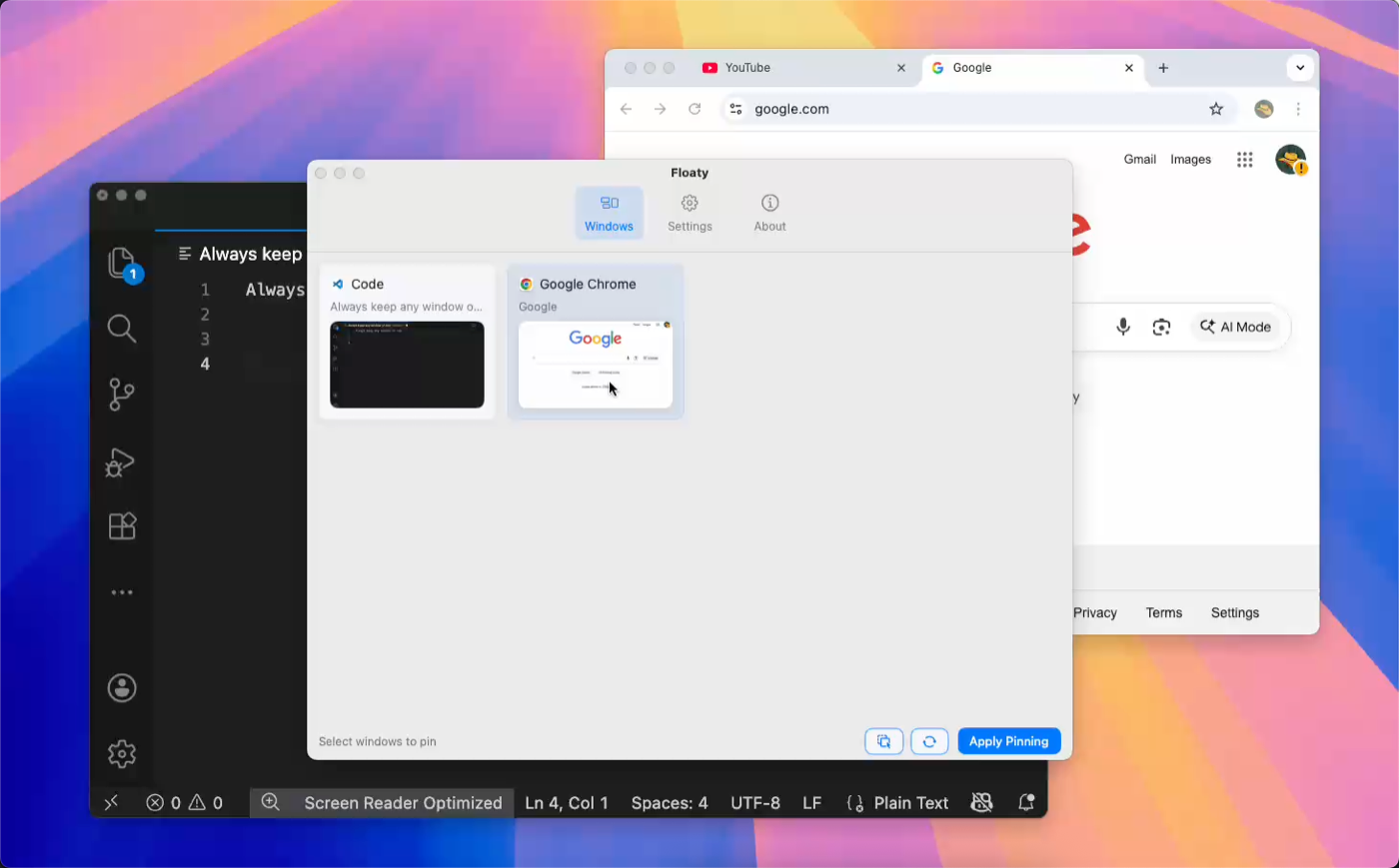
- Pin almost any window so it stays visible while you work in another app.
- Drop opacity when a floating video or doc should not fully block the editor.
- Typical uses: tutorial + IDE, ticket PDF + code, terminal logs during deploy.
Setup: install → grant Accessibility → pin one window → unpin when done so the desktop stays calm. Pair with Rectangle (or Raycast window actions) for placement; Floaty only owns the pin.
Rectangle: tiling without the drama
If you know Windows snap or Linux tiling, stock macOS still feels underpowered for keyboard layout. Rectangle is free, open source, and boring in the best way.
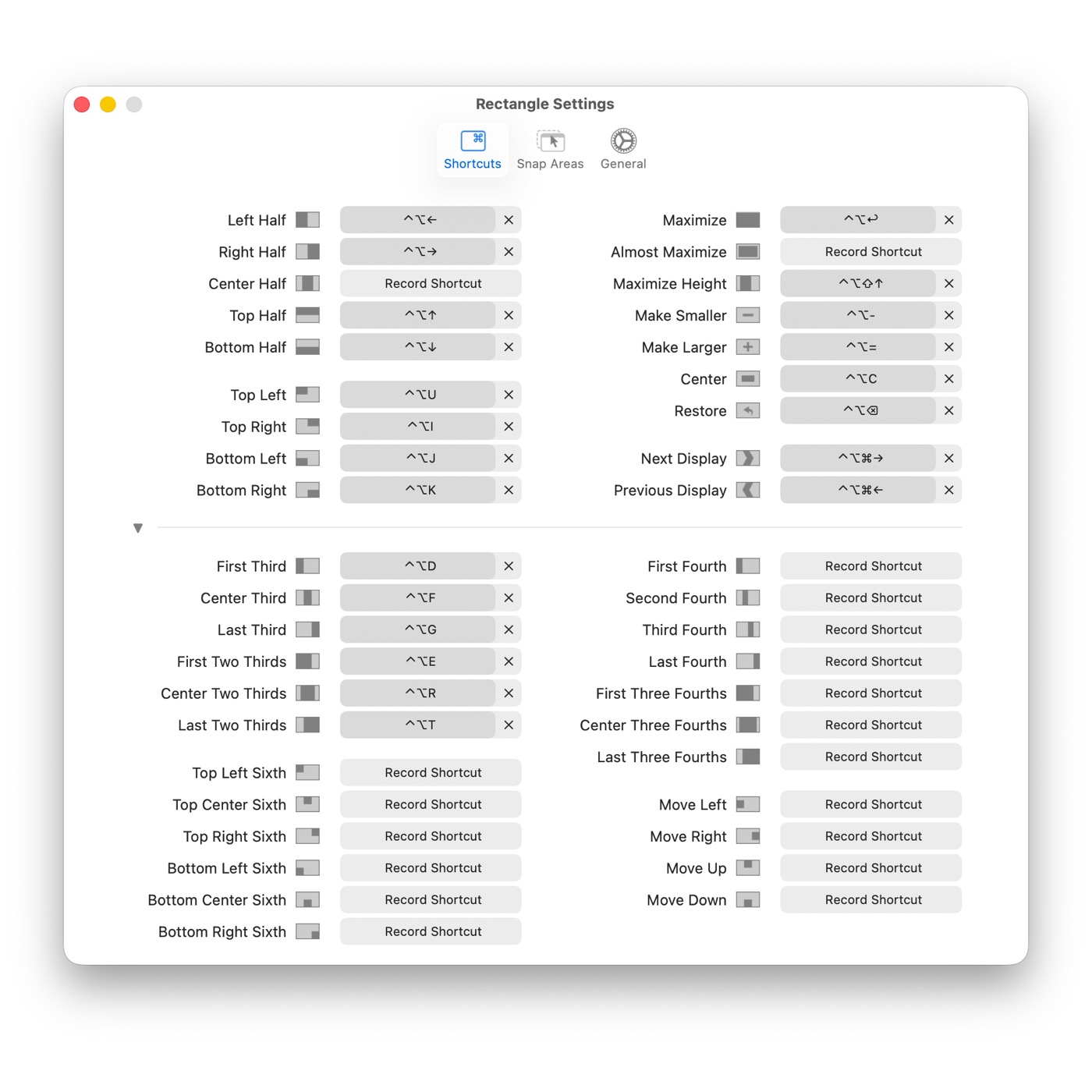
- Snap to halves, corners, thirds, and other presets with global hotkeys.
- Works cleanly across displays; lives quietly in the menu bar.
- Starter map: left/right half for code + docs; maximize in-display for focus; corners/thirds on ultrawide.
Apple improved system tiling, but thirds, multi-monitor muscle memory, and predictable hotkeys still favor Rectangle. Pro is optional; the free build covers daily layout.
Raycast: the launcher that replaces a tray of apps
Raycast is Spotlight with an API and a bias toward developers. Bind it to Option-Space (or your chord) and stop hunting the Dock.
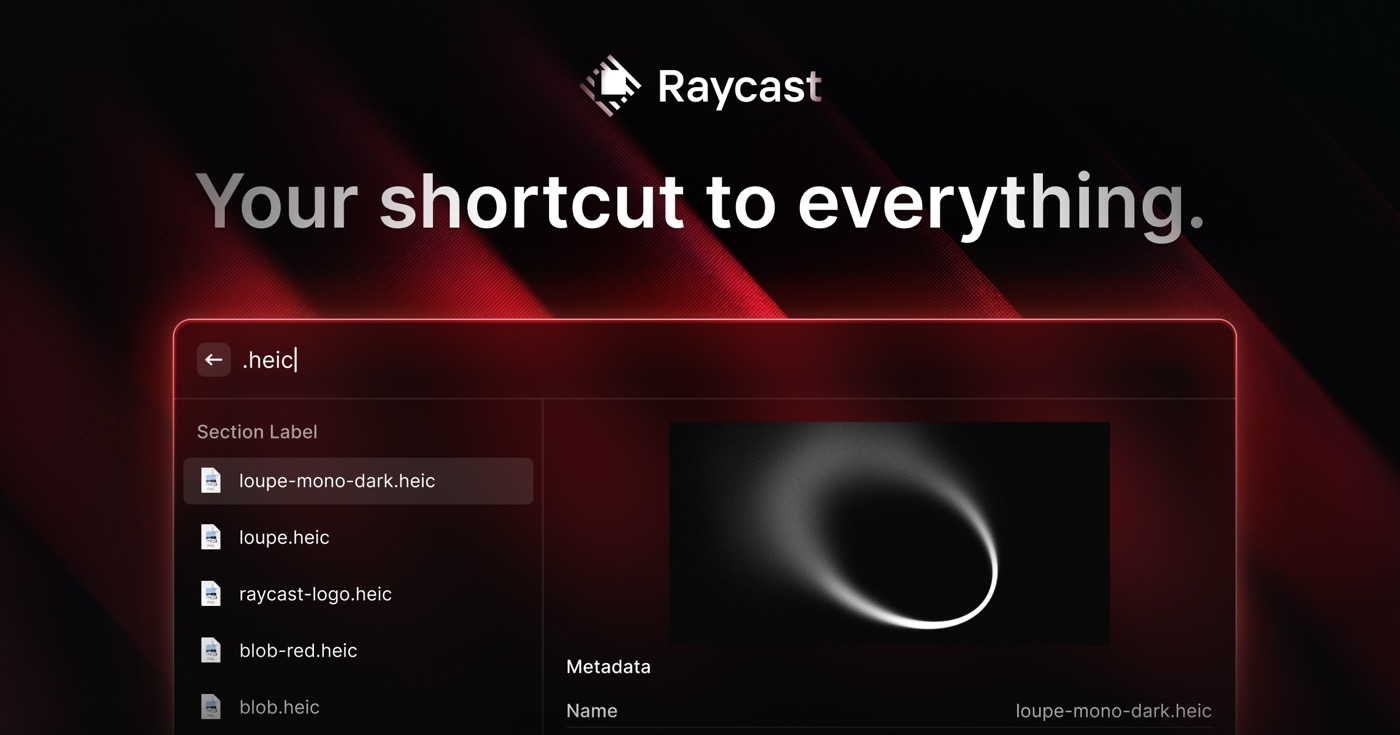
- Launch apps, files, windows, and deep links.
- Clipboard history so the last copy is not gone forever.
- Snippets, extensions (GitHub, issue trackers, system tools), and basic window snaps.
- AI on Pro is optional; the free tier already changes how you drive the Mac.
Setup that matters: grant Accessibility → steal Spotlight’s hotkey → enable clipboard history → pin a few extensions you will actually use. If Raycast snaps feel enough, try a week without Rectangle; put Rectangle back if you miss thirds.
Warp: the terminal you actually enjoy using
Stock Terminal.app works. For daily CLI work it still feels like 2005. Warp keeps a real shell (zsh, bash, fish, etc.) but wraps input and output in blocks, with modern editing, search, and completions aimed at people who spend hours in the terminal.
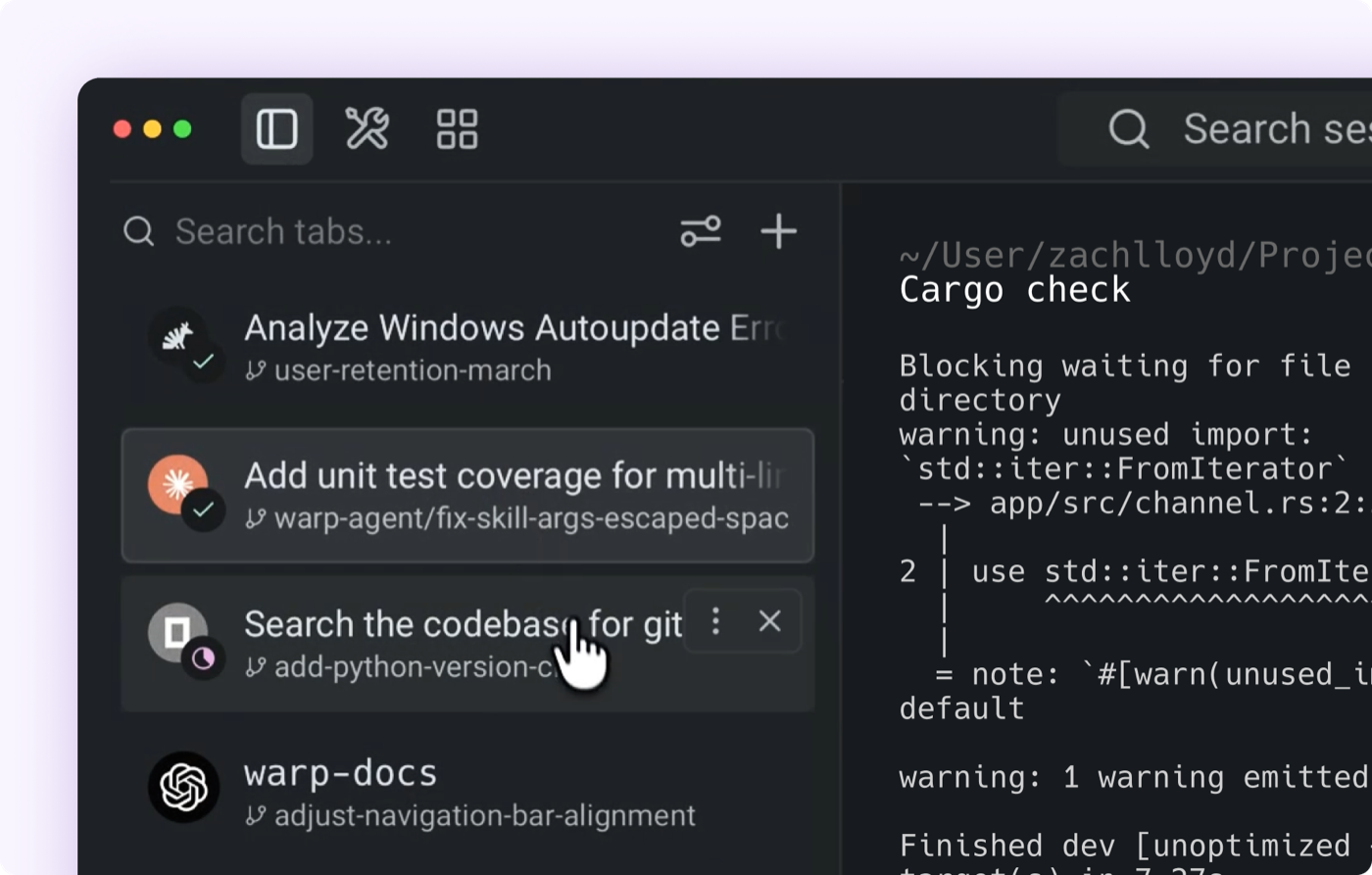
- Command and output as blocks: scroll and reuse without hunting through a wall of text.
- Editor-like input: cursor movement and selections feel closer to a code editor than a teletype.
- Completions and workflows that reduce retyping long flags and git incantations.
- Same mental model as your shell; you are not locked into a proprietary runtime.
Setup: install from warp.dev → sign in if you want sync/features that require it → set as default terminal if it fits your flow → keep your existing shell config (.zshrc still applies). Use Floaty on a Warp window when logs must stay visible over the IDE.
CleanShot X: screenshots without the friction
Built-in macOS capture is fine occasionally. If you grab UI daily (bugs, PRs, docs, support), CleanShot X is the upgrade: better modes, annotation, and less “where did that file go?”
- Area, window, full screen, and scrolling capture that usually “just works.”
- Quick annotate (arrows, blur, steps) before share.
- Pin, cloud upload, history, and OCR when you need text out of a shot.
- Cleaner workflow than stacking Preview + default shortcuts + random Desktop clutter.
Setup: install → set your preferred hotkeys (replace or sit beside system shortcuts) → grant Screen Recording and Accessibility → decide whether captures land on Desktop, a folder, or cloud.
Screen Studio: recordings that look intentional
Quick clips can stay in CleanShot or QuickTime. When the video is the deliverable (changelog demos, onboarding, marketing), Screen Studio is built for that outcome: automatic framing energy without a full editor timeline for every export.
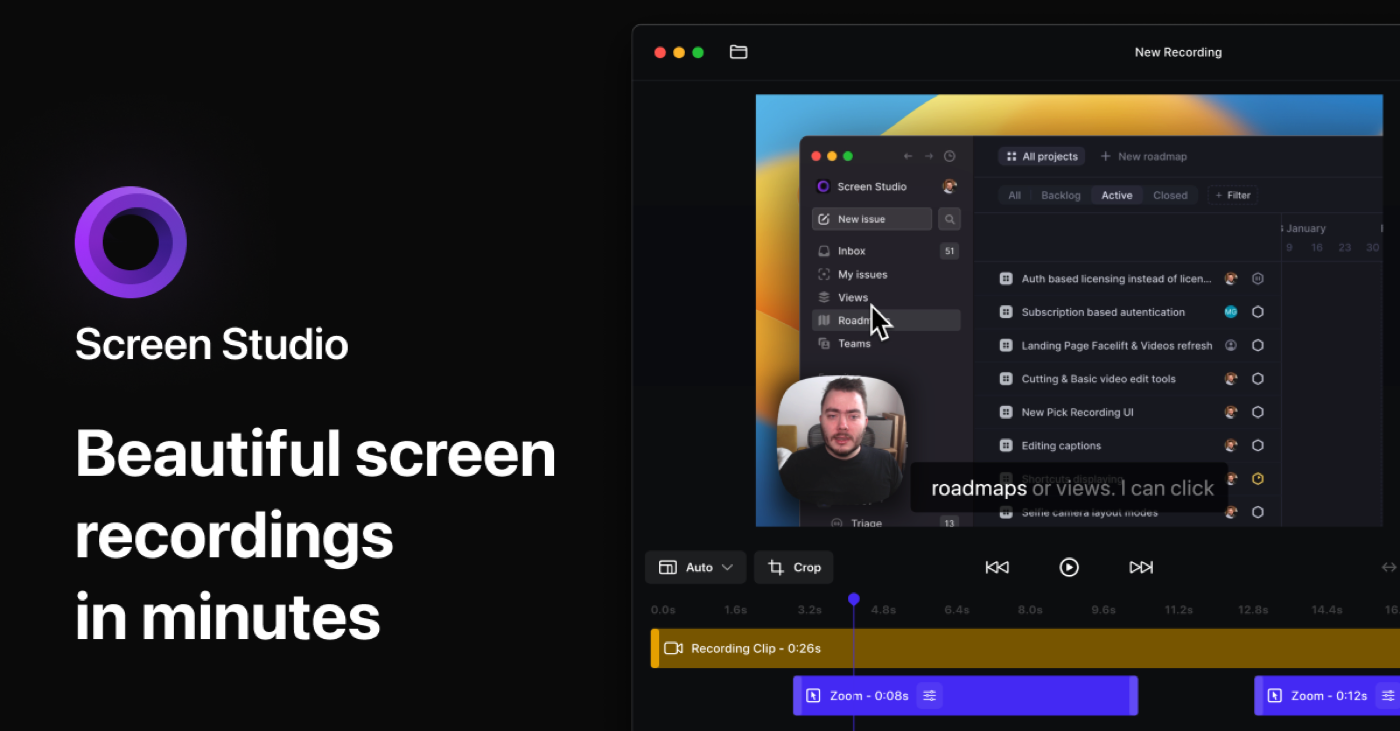
- Smooth zooms and cursor motion that make UI readable on a phone or embed.
- Export that looks closer to a finished demo than a raw screen dump.
- Faster path than “record in OBS, fix in Final Cut” for most product clips.
Setup: install → grant Screen Recording (and mic if you narrate) → record a short flow once to learn the export defaults → keep CleanShot for stills so Screen Studio stays for demos.
OrbStack: containers on Mac without Desktop weight
Docker Desktop works until it does not (RAM, updates, licensing friction). OrbStack is a Mac-native alternative for running Docker containers and Linux machines with less overhead for many developer setups.
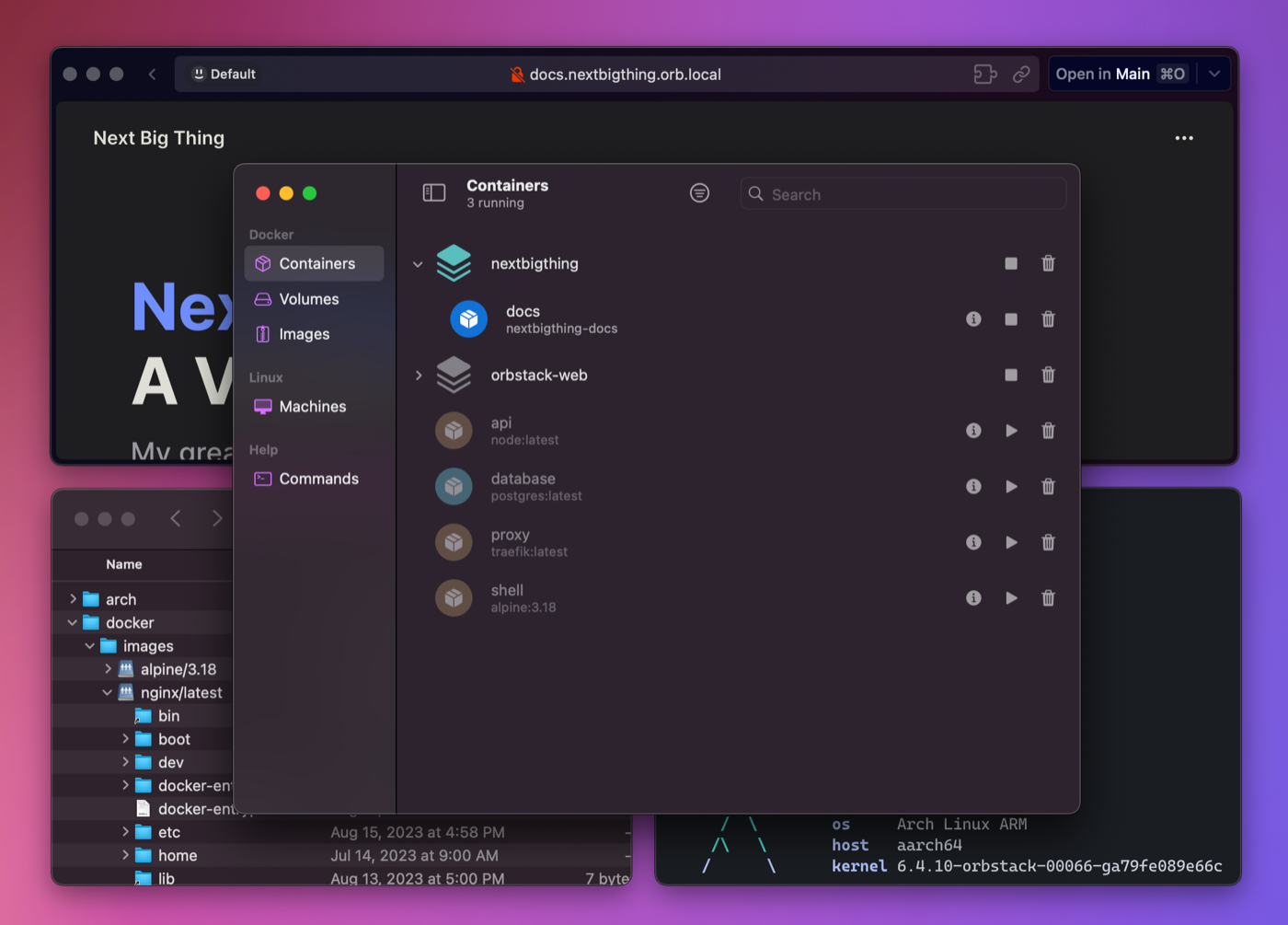
- Fast start and lower resource use for everyday compose stacks.
- Familiar
dockerCLI workflows in a lighter shell. - Linux VMs when you need a full machine, not only containers.
- Aimed at local dev, not replacing cloud orchestration.
Setup: install from orbstack.dev → migrate or point your CLI at OrbStack → run your usual compose project once → leave Docker Desktop disabled if you fully switch.
How they fit together
- Raycast opens the thing (
Option-Space). - Rectangle places the main window (half / maximize / third).
- Floaty pins the secondary pane (call, video, checklist).
- Warp runs the CLI work (build, git, servers).
- OrbStack runs the containers that back that CLI work.
- CleanShot documents UI; Screen Studio ships the demo video when needed.
Example: IDE left half (Rectangle), docs right third, tutorial pinned (Floaty), Warp + OrbStack on the second display, Raycast for everything else, CleanShot for PR comments, Screen Studio for the release clip.
Install checklist
- Rectangle — half/maximize hotkeys.
- Raycast — launch chord; clipboard history.
- Floaty — Accessibility; pin once to confirm.
- Warp — shell and PATH feel normal.
- OrbStack — one compose project boots cleanly.
- CleanShot X — Screen Recording; capture folder set.
- Screen Studio — only if you publish demos; Screen Recording granted.
- Login Items — only what you want at boot.
Skip Magnet, Moom, BetterTouchTool, and Alfred on day one unless a weekly pain remains. Start here; add specialists later.
Verdict
- Floaty when something must stay visible.
- Rectangle when something must sit in a grid.
- Raycast when you want a command instead of a hunt.
- Warp when the terminal is part of the job, not a punishment.
- CleanShot when screenshots are weekly (or daily) work product.
- Screen Studio when the recording has to look intentional.
- OrbStack when containers should not own your RAM.
One install: Raycast. Two: add Rectangle. Add Floaty when a reference window keeps disappearing. Add Warp when Terminal.app costs attention. Add OrbStack when Docker Desktop feels heavy. Add CleanShot when capture is constant. Add Screen Studio when demos are part of shipping.